
Guide
Add the Keyfred keyboard to your device
Setup
Open the Keyfred App
After installing Keyfred, open the app to see the keyboard onboarding screen.

Go to Keyboard Settings
Tap "Go to Add Keyboard" to open the Keyfred settings page.

Add Keyboard & Allow Full Access
Tap Keyboards to add Keyfred, then enable "Allow Full Access".


AI features require network communication. Keyfred never stores your input anywhere.
Prefer using another keyboard? No problem. Write your text with any keyboard, then switch to Keyfred to use the AI features.
Powerful AI writing assistance, auto-completed at your fingertips
The moment you type, AI predicts your sentence. Tap once to complete it instantly.

AI Features
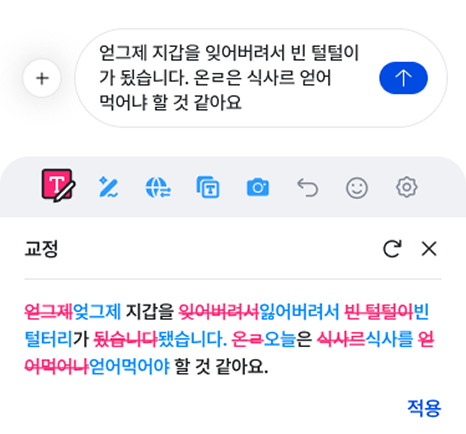
Correction
Fixes typos, spelling, grammar errors, and spacing issues. Tap "Apply" to accept the changes.
Rewrite
AI completely rewrites your text to match your chosen tone. Pick from three intensity levels — mild, moderate, and strong.

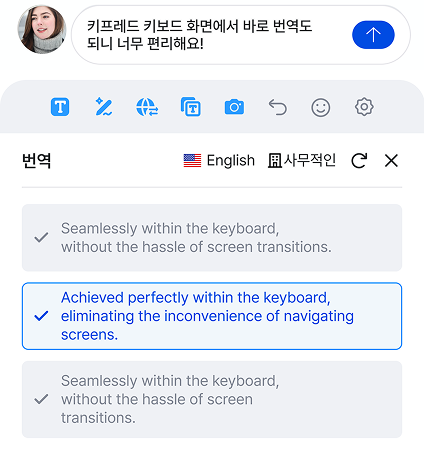
Translation
Translate your text into 8 languages. Three versions with different tone intensities let you choose the perfect expression.
Clipboard Translation
Need to translate text you didn't write? Copy any text, then tap this icon to translate it directly from your clipboard.

Privacy Protection
Your data stays safe with Keyfred

Keyfred never stores any text you type — anywhere.
AI features are automatically disabled in sensitive fields like passwords and credit card numbers. No data is sent over the network.